Automatically extract data from documents sent via email - forward invoices, receipts, and statements for AI processing
Overview
DocVision automatically generates a unique email address for your organization. Simply send emails with document attachments to this address, and the system will process each attachment through the standard extraction pipeline.
Get your organization's email address
- Open Organization Settings from the app header
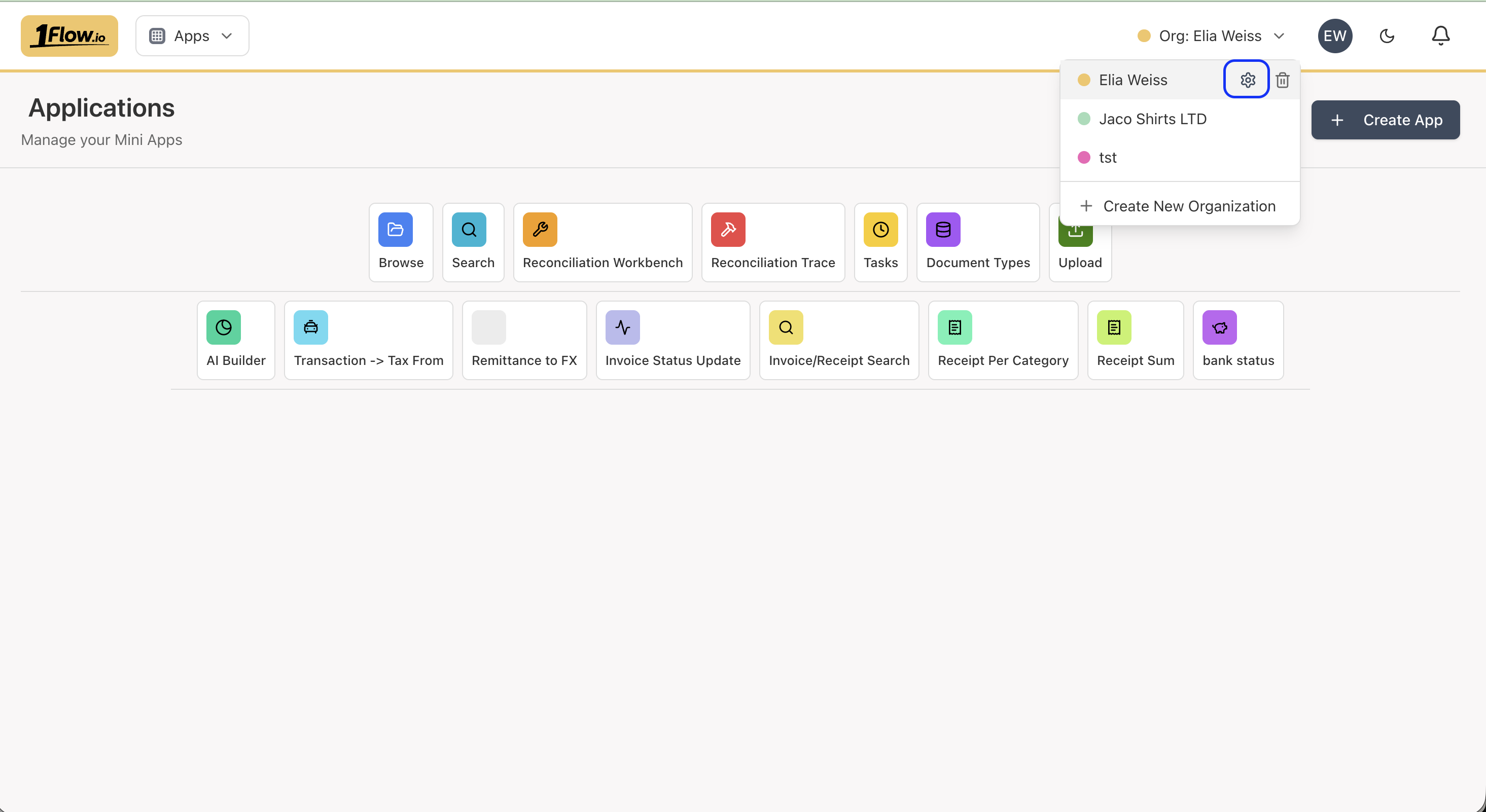
- Click on Email section
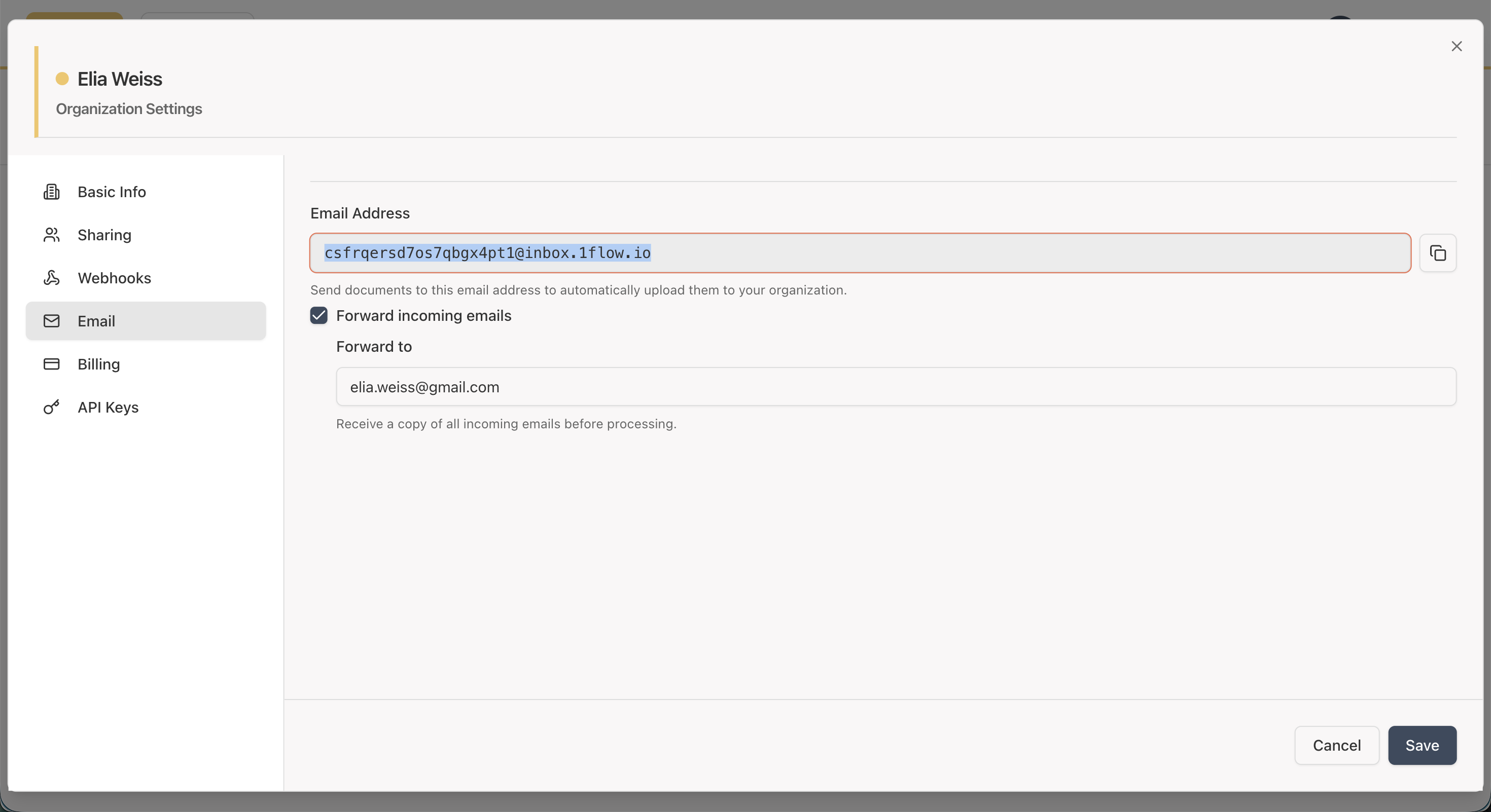
- Your unique email address is displayed and ready to use
- Copy the email address to use in your workflows, ie send an email to this address with a document attachment.
You can optionally forward incoming emails to another address:
- Enable Forward incoming emails
- Enter the email address to forward to
- Click on Save settings
How It Works
When an email arrives at your organization's email address:
- Email Reception - The email is received and stored
- Attachment Extraction - PDF and image attachments are extracted
- Document Processing - Each attachment goes through the standard pipeline:
- Upload to storage
- Classification
- Folder assignment
- Data extraction
- Indexing for search
Dataset files (Excel, CSV) are not supported via email. Only document files (PDF, images) are accepted.
The extraction process is powered by AI and can take up to a minute per document.
Troubleshooting
Documents Not Appearing
If documents aren't appearing after emailing:
- Verify you're using the correct email address from Organization Settings
- Check that attachments are PDF or image files
- Ensure the email was sent successfully
- Check your organization's document list after a few minutes
Email Forwarding Not Working
If email forwarding isn't working:
- Verify the forwarding email address is correct
- Check your spam folder
- Ensure forwarding is enabled in settings
Frequently Asked Questions
Can I send multiple attachments in one email?
Yes. Each attachment is processed as a separate document. The system extracts PDF and image attachments from the email and processes each one independently through the extraction pipeline.
What happens to the email body text?
The email body itself is not processed - only file attachments are extracted and processed. The email body text is discarded.
Is there a file size limit for email attachments?
Standard email size limits apply (typically 25MB per email depending on the email provider). Each individual attachment must be a supported file type (PDF or image).
Can I use email forwarding rules to automate this?
Yes. Many teams set up email forwarding rules in their email client (Gmail, Outlook, etc.) to automatically forward emails containing document attachments to their DocVision organization email address. This creates a fully automated document processing pipeline.
How do I know when email documents are processed?
Set up Webhook Callbacks to receive notifications when documents are processed. Alternatively, check the document list in the DocVision app or use the Get API to query document status.
Next Steps
- Learn about the Upload API for programmatic document submission
- Set up Webhook Callbacks to receive notifications when documents are processed
- See the Upload + Polling Example for a complete integration workflow
- Read the API Overview for all integration methods
- Check the FAQ for common questions