Learn how to create custom document types and add custom fields
Custom Document Types Overview
A custom document type is a document schema that you create to define the structure of specific types of financial documents. While 1Flow comes with built-in document types (like Invoice, Receipt, Bank Statement), you can create custom document types for documents that aren't covered by the defaults.
Custom document types allow you to:
- Define exactly which fields should be extracted
- Organize fields into header and line item collections
- Configure how AI extracts each field
- Create document types specific to your industry or workflow
Custom Fields
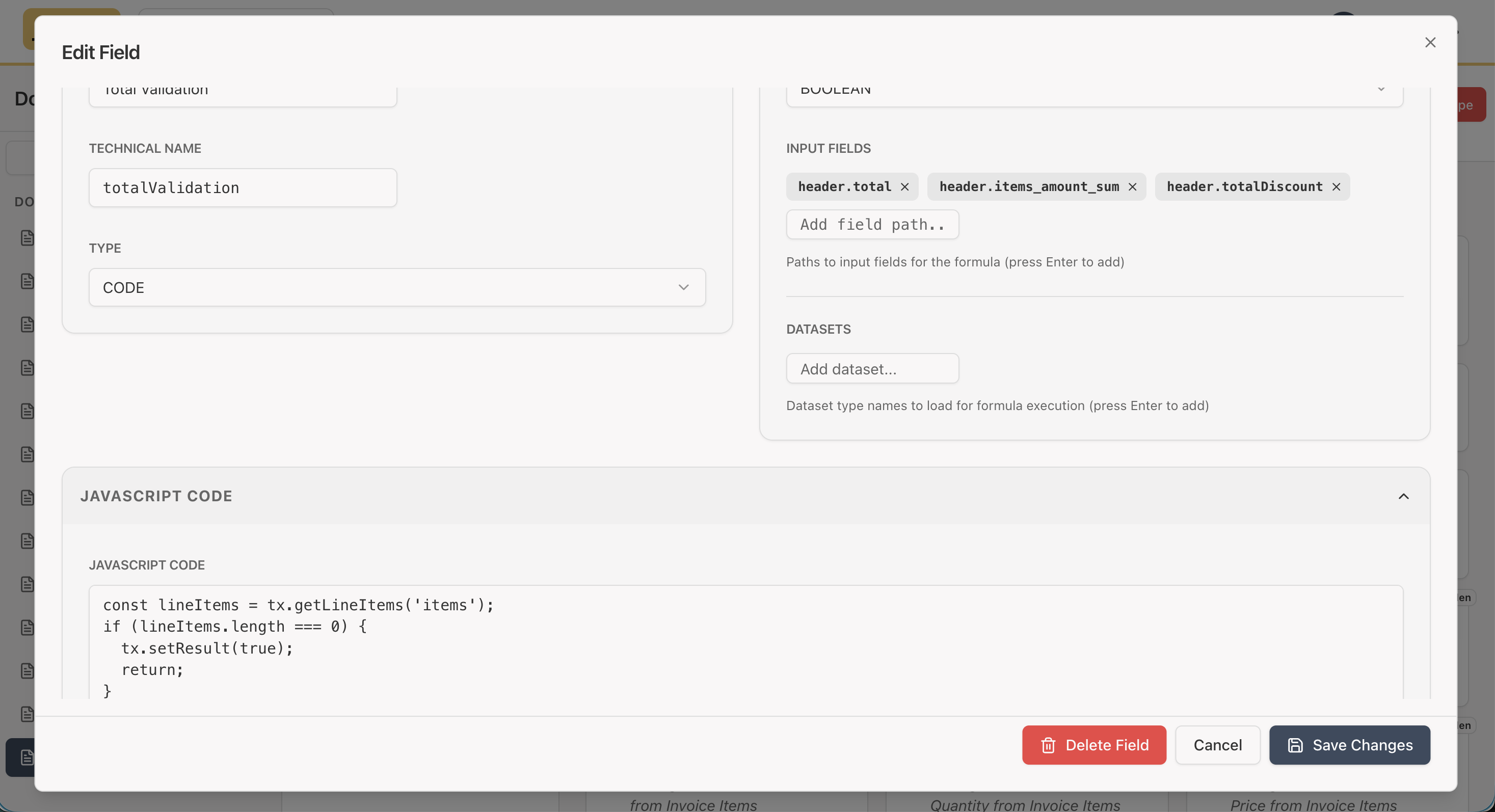
Custom fields are data fields that you add or modify in document types. Importantly, all document types and fields are customizable - there's no difference between system (built-in) document types and custom document types in terms of customization capabilities.
System document types (like Invoice, Receipt, Bank Statement) are simply pre-created for convenience, but they're meant to be customized to your organization's specific needs. You can:
- Add new fields to any document type (system or custom)
- Modify existing fields - change descriptions, extraction hints, flags, and other properties
- Remove fields that aren't relevant to your workflow
- Customize field behavior - adjust AI extraction, formulas, display options, and more
Every field, whether it came with a system document type or you created it yourself, can be fully customized per organization. System document types are just starting points - they're not locked or special in any way.
Creating a Custom Document Type
Step 1: Create the Document Type
- Navigate to Document Types in the main navigation
- Click Create Custom Document Type
- Fill in the basic information:
- Name: Technical identifier (e.g.,
UTILITY_BILL) - Display Name: Human-readable name (e.g.,
Utility Bill) - Description: Optional description for AI classification
- Color: Visual color identifier
- Name: Technical identifier (e.g.,
Step 2: Define Header Schema
Header fields are extracted from the document header and apply to the entire document:
- Click Add Field in the Header section
- Configure the field properties (see Field Configuration below)
- Repeat for all header fields you need
Common header fields:
- Vendor/Provider name
- Document number
- Date
- Total amount
- Currency
- Due date
- Account number
Step 3: Define Line Item Schemas
Line item fields apply to individual items within collections:
- Click Add Collection to create a new line item collection
- Give the collection a name (e.g.,
items,charges,transactions) - Click Add Field within the collection
- Configure each field
Common line item fields:
- Description
- Quantity
- Unit price
- Amount
- Category
- SKU/Product code
Step 4: Configure Extraction
For each field, configure how AI should extract it:
- Description: Explain what the field represents
- Extraction Hint: Provide specific guidance for AI extraction
- AI Extractable: Enable/disable AI extraction for this field
See AI Custom Fields for detailed information.
Step 5: Test Your Schema
- Upload a sample document
- Review the extraction results
- Adjust field configurations as needed
- Iterate until extraction quality meets your requirements
Field Configuration
Each field has several configuration options:
Core Properties
- Field Name: Display name shown in the UI
- Technical Name: Internal identifier (used in API and formulas)
- Field Type: Data type (text, number, currency, date, boolean, enum)
- Enum Values: For enum fields, define allowed values
Flags
- Hidden: Hide field from UI (useful for computed fields)
- Required: Field must be present (for validation)
- AI Extractable: Allow AI to extract this field (disable for workflow fields, notes, or formula fields)
- Searchable: Include in search index
- Is Important: Mark as important field
- Is Description: Use as primary description field
- Is Reconcilable: Allow reconciliation on this field
- Is Institution: Mark as institution identifier
- Is Primary Key: Use for dataset upsert operations
See Non-AI Fields for information about when to disable AI extraction.
Search and Display
- Pinned: Pin column to left or right in tables
- Currency Field: For currency fields, reference the currency code field
Formulas
- Sum Fields: Auto-aggregate line item values
- Code Fields: Custom JavaScript for computed values
See Formula Fields for detailed information.
Field Types
Text
Free-form text fields for names, descriptions, notes, etc.
Use cases:
- Vendor names
- Product descriptions
- Notes and comments
- Reference numbers
Number
Numeric values without currency formatting.
Use cases:
- Quantities
- Percentages
- Counts
- Measurements
Currency
Monetary amounts with currency support.
Use cases:
- Amounts
- Prices
- Totals
- Fees
Configuration:
- Link to a currency field to specify the currency code
Date
Date values in YYYY-MM-DD format.
Use cases:
- Invoice dates
- Due dates
- Transaction dates
- Expiration dates
Boolean
True/false values.
Use cases:
- Flags
- Status indicators
- Checkboxes
Enum
Predefined list of allowed values.
Use cases:
- Status (PAID, UNPAID, OVERDUE)
- Categories
- Types
- Priorities
Configuration:
- Define allowed values when creating the field
Best Practices
Naming Conventions
- Technical names: Use camelCase (e.g.,
invoiceNumber,totalAmount) - Display names: Use proper capitalization (e.g.,
Invoice Number,Total Amount) - Keep names descriptive: Avoid abbreviations unless widely understood
Field Organization
- Group related fields: Organize fields logically in the schema
- Use consistent naming: Follow patterns across your document types
- Document field purposes: Use descriptions to explain field usage
AI Extraction
- Provide clear descriptions: Help AI understand what to extract
- Use extraction hints: Give specific examples or format requirements
- Test thoroughly: Upload sample documents to verify extraction quality
Performance
- Limit searchable fields: Only mark fields as searchable if needed
- Use formulas for computed values: Don't extract what can be calculated
- Hide unnecessary fields: Use hidden flag for internal-only fields
Examples
Example: Utility Bill Document Type
Header Fields:
providerName(text) - Utility provider nameaccountNumber(text) - Customer account numberbillDate(date) - Bill datedueDate(date) - Payment due datetotalAmount(currency) - Total bill amountcurrency(text) - Currency code
Line Item Collection: "charges"
description(text) - Charge descriptionamount(currency) - Charge amountcategory(enum) - Charge category (ELECTRICITY, WATER, GAS, etc.)
Example: Purchase Order Document Type
Header Fields:
vendorName(text) - Vendor namepoNumber(text) - Purchase order numberorderDate(date) - Order datetotalAmount(currency) - Total order amount
Line Item Collection: "items"
sku(text) - Product SKUdescription(text) - Product descriptionquantity(number) - Ordered quantityunitPrice(currency) - Unit priceamount(currency) - Line total (formula: quantity × unitPrice)
Next Steps
- Learn about AI Custom Fields configuration
- Understand Non-AI Fields for workflow and manual fields
- Explore Formula Fields for computed values
- Check out Document Types for more information
Custom document types are organization-specific. Each organization can create and customize their own document types independently.