Visualize reconciliation relationships and trace money flow through your financial data
Overview
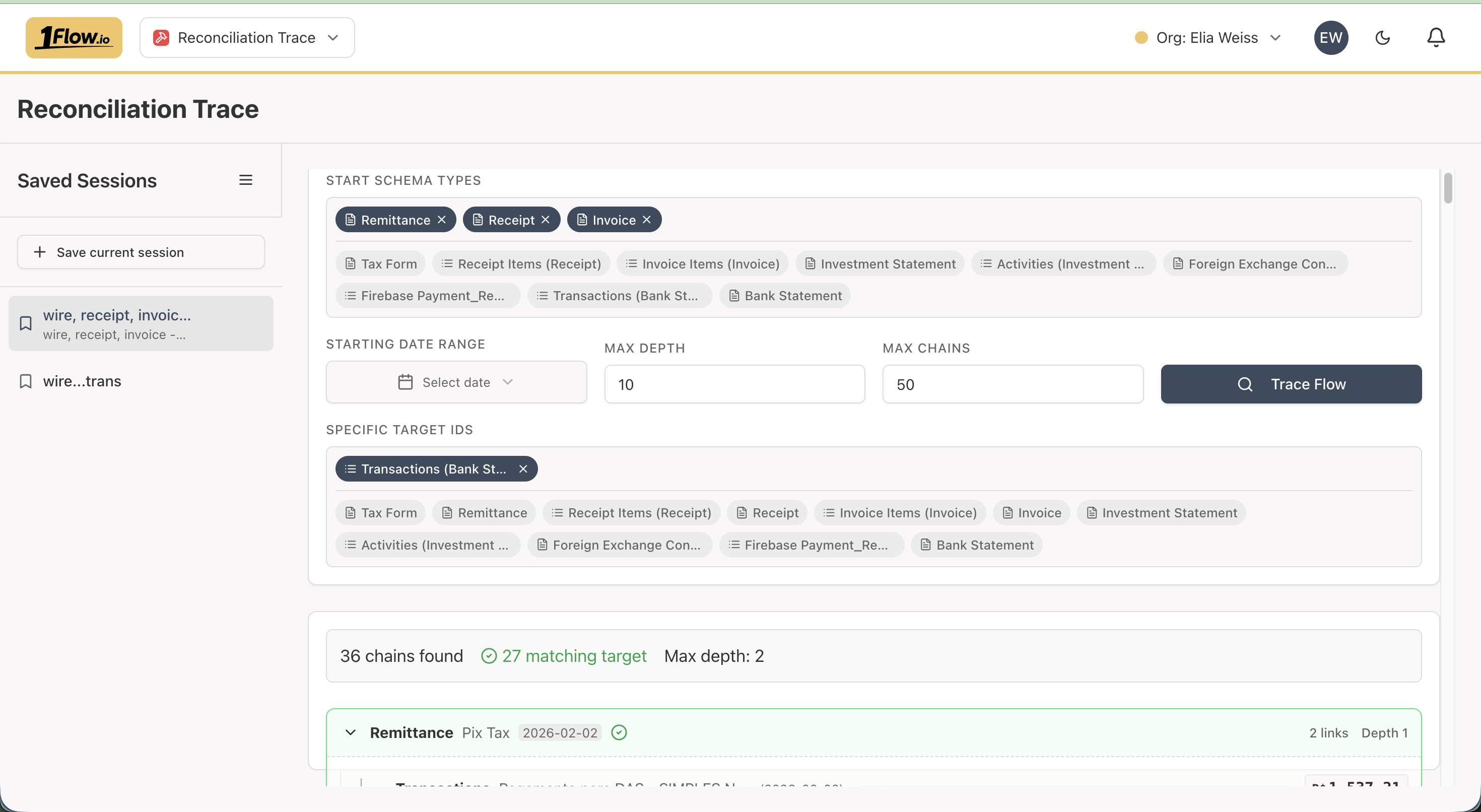
The Money Flow (aka Reconciliation Trace) provides a visual representation of reconciliation relationships, allowing you to trace money flow through your financial data. It displays reconciliation links as a directed graph where you can see how entities are connected and trace paths from source to target entities.
Understanding the Graph
The Money Flow displays reconciliation links as a directed graph:
- Nodes represent financial entities (headers or line items)
- Edges represent reconciliation links showing relationships
- Direction indicates money flows from source to target
Using the Search
The Money Flow search allows you to trace reconciliation relationships by configuring search parameters:
Start Schema Types
Select which document types to start tracing from. This filters the starting points of your money flow trace. You can select multiple document types (e.g., invoices, bank statements) to trace from.
Date Range
Filter reconciliation links by date range. You can:
- Select a specific date range using the date picker
- Use quick range shortcuts (e.g., "Last 30 days", "This month", "Last quarter")
- Leave empty to include all dates
Max Depth
Control how many levels deep the trace will go. This limits how many hops the trace will follow through reconciliation links:
- Lower values (1-3) show direct relationships
- Higher values (5-10) show extended money flow paths
- Maximum value is 20
Limit
Set the maximum number of results to return. This helps manage performance and focus on the most relevant relationships:
- Lower values (10-50) for focused analysis
- Higher values (100-200) for comprehensive views
End Schema Types
Optionally filter which document types to trace to. This allows you to focus on specific destination entities (e.g., only trace to bank statements).
Running the Search
Click the Search button to execute the trace. The results will display as a tree structure showing the money flow paths from your starting entities.
Saving Sessions
You can save your search configuration as a session to quickly reload it later:
Saving a Session
- Configure your search parameters (date range, schema types, max depth, limit)
- Click the Save button in the left sidebar
- Enter a name for your session (required)
- Optionally add a description to help identify the session
- Click Save to store the session
The saved session includes all your current search settings:
- Start and end schema types
- Date range (or date range shortcut)
- Max depth
- Limit
Loading a Saved Session
- Open the left sidebar (if closed, click the menu icon)
- Browse your saved sessions in the sidebar
- Click on a session name to load it
- The search parameters will be restored automatically
- Click Search to run the trace with the saved configuration
Managing Sessions
- Update: Click the edit icon on a saved session to update its name, description, or configuration
- Delete: Click the delete icon to remove a session you no longer need
- Refresh: Use the refresh button to reload the list of saved sessions
Saved sessions are persistent and available across browser sessions, making it easy to return to frequently used money flow traces.
Use Cases
Audit Trail
Review reconciliation links to understand how financial data is connected and verify accuracy.
Money Flow Analysis
Trace how money moves through your system:
- From invoices to bank statements
- Through foreign exchange transactions
- Across multiple documents and transactions
Relationship Discovery
Discover unexpected relationships between financial entities by exploring the reconciliation graph.
Integration with Workbench
Reconciliation links created in the Workbench automatically appear in the Money Flow:
- View links immediately after creation
- Filter by date, amount, or document type
- Navigate to source documents
The Money Flow helps you understand the complete picture of how your financial data is connected.