Build a complete automation that pulls invoices from Google Drive, extracts data using AI with DocVision, and automatically updates your Google Sheets - all without lifting a finger.
If you're tired of manually processing invoices and want to automate your entire document workflow, you're in the right place. This guide shows you how to build a complete automation that pulls invoices from Google Drive, extracts all the data using AI, and automatically updates your Google Sheets - all without lifting a finger.
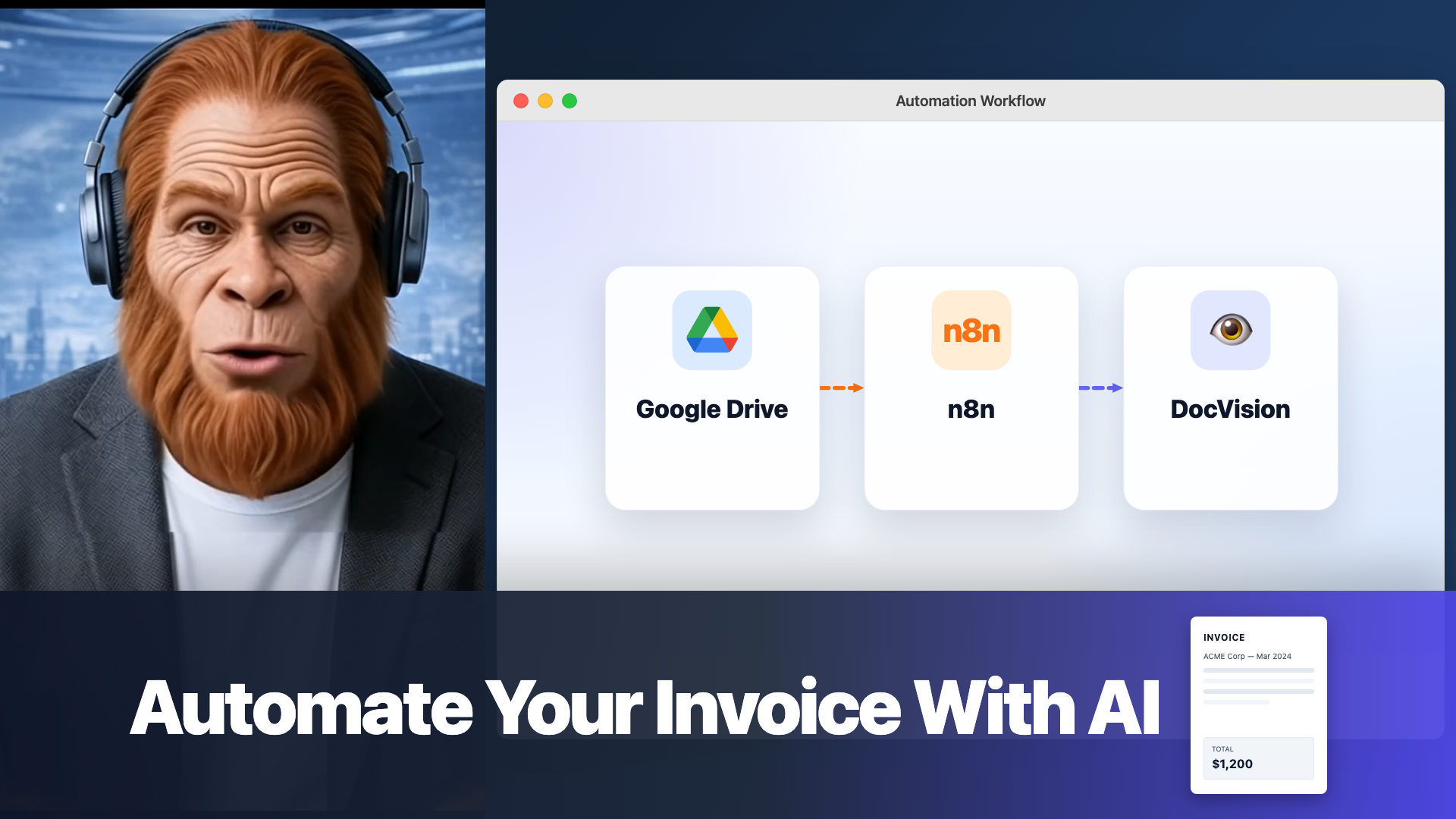
Overview
In this workflow, we demonstrate how to use N8N to pull an invoice image uploaded to Google Drive, extract the invoice content in JSON format using DocVision (an AI system that extracts information from financial documents), and update a Google Sheet with the extracted content.
The process connects three platforms:
- N8N - For automations
- Google Drive - For document storage
- DocVision - For parsing and extracting data from documents
Setup: Google Drive Folders
In a preliminary step, create two folders in Google Drive:
- Unprocessed - Where you upload new invoices. N8N will pull invoices from here, send them to DocVision, extract the data, and transfer them to the processed directory.
- Processed - Where completed documents land with their extracted JSON data. You'll see the document, the fields DocVision extracted (e.g., total, tax, line items), and a row in your Google Sheet with the extracted invoice data.
The Flow in Action
When you click "Execute," the flow:
- Pulls the invoice from the unprocessed folder
- Sends it to DocVision for extraction
- Extracts the data to Google Sheet
- Creates files in the processed folder
The result: a new row in your Google Sheet with all the invoice data, and the document moved from unprocessed to processed.
Configuring DocVision
- Enter the DocVision platform and go to API web hook
- Use the Upload endpoint and copy the URL
- In the N8N node, configure:
- URL - The DocVision upload endpoint
- Content type - Form data
- Format - Binary file
- Parameter name -
file - Data - The file from the previous download step
In DocVision's "Files and Folders" section, you can view each document with all extracted fields: general fields, total, tax, and line items.
Connecting N8N to Google Drive
The first step is connecting N8N to Google Drive. This is a technical process - follow the step-by-step guide in our dedicated video. You can also find countless tutorials on YouTube by searching "connect Google Drive to N8N."
Flow Breakdown
1. Scheduler
A simple node that runs the flow every two minutes (or whatever interval you choose).
2. Google Drive - Search
- Resource - File and folder
- Operation - Search
- Search method - Search in the "unprocessed" folder
- Returns - File ID and name
3. Move File
- Takes the file from "unprocessed"
- Moves it to the "process" folder
- Uses the file ID from the previous step
4. Download File
- Resource - File
- Operation - Download
- Receives the file ID and performs the download
5. DocVision API
- Sends the downloaded file to the DocVision upload endpoint
- Returns - Document status and all extracted fields (date, invoice number, business name, line items, etc.)
6. Google Sheets - Add Row
- Resource - Spreadsheet
- Operation - Append row
- Map each column to a value from the DocVision JSON response
7. Create Folder and Save Files
- Resource - Folder
- Operation - Create
- Create a folder for each document
- Save both the JSON from DocVision and the document itself
- Use "File create from text" for the JSON content
- Return the document ID for additional actions if needed
Summary
You now have a fully automated invoice processing workflow that connects N8N, Google Drive, and DocVision. This setup saves hours of manual data entry and keeps your financial records up to date.